
Readable for Chrome — Help
Readable for Chrome adds an accessible reading layer to almost every web page. Read text aloud on hover or selection, soften the page with a colour tint or a tracking ruler, override fonts and spacing, get next-word predictions while typing, and more. It works in Google Docs, Slides, Forms, Classroom, Gmail and on PDFs.
Install free from the Chrome Web Store, or contact us about managed deployment for schools.
Getting started
There are two main surfaces: the floating toolbar that appears on every page, and the full Settings page.
The toolbar

The toolbar floats in a chosen corner of every page. It groups its controls into three compact dropdowns plus a row of always-visible buttons.
- Hover/read mode (red lines icon) — choose what gets spoken when the cursor stops over text: Hover off, Word hover, Line hover, Sentence hover, Block hover, Document read, or Text extractor (OCR).
- Text appearance (ƒ icon) — quick access to font, size (with A− / A+ buttons), and line / letter / word spacing.
- Tools (⋯ icon) — open a PDF in Readable for Chrome's viewer, and toggle the dictionary lookup on or off (a checkmark shows when it's on).
Always-visible buttons: ▶ Play / ■ Stop, ⚙ Settings, and ? Help. The drag handle (≡) on the left lets you drag the bar to any of the four corners of the screen.
Customising or hiding the toolbar
In Settings → Workspace you can:
- Show or hide the floating toolbar entirely.
- Choose its position: top right, top left, bottom right, or bottom left.
- Choose its colour mode: Colours, Black & white, or Blue.
To toggle the toolbar without opening Settings, press Alt+Shift+R. You can also right-click any page area and choose Show / hide Readable for Chrome toolbar, or right-click the Readable for Chrome icon in Chrome's toolbar and use the same item.
The SR recovery button
When the toolbar is hidden, a small SR circle appears in the corner of the page. Click it to bring the toolbar back. This is the visual cue that the extension is still active even when the toolbar isn't visible.
The Settings page
Click the ⚙ gear on the toolbar to open the full Settings page in its own tab. You can also click the Readable for Chrome icon in Chrome's toolbar (next to the address bar) — it opens the same Settings page. Settings is organised into nine tabs:
- Speech — voice, rate, pitch, volume, silent mode.
- Reading — hover behaviour, select-to-speak, visual tracking of the spoken word.
- Visuals — colour tint, reading ruler, dim band, high contrast.
- Text — font override, sizing, spacing, colours.
- Prediction — predictive typing modes and behaviour.
- Ambient — background sound while you read.
- PDF & OCR — PDF viewer behaviour and OCR language.
- Workspace — toolbar visibility, position, colour mode, dictionary toggle, keyboard shortcuts.
- About — version, managed-policy info, reset button.
Right-click menus
Readable for Chrome adds items to three different right-click menus, depending on what you click. Together they give you the same actions as the toolbar but reachable from anywhere on the page.
On a text selection
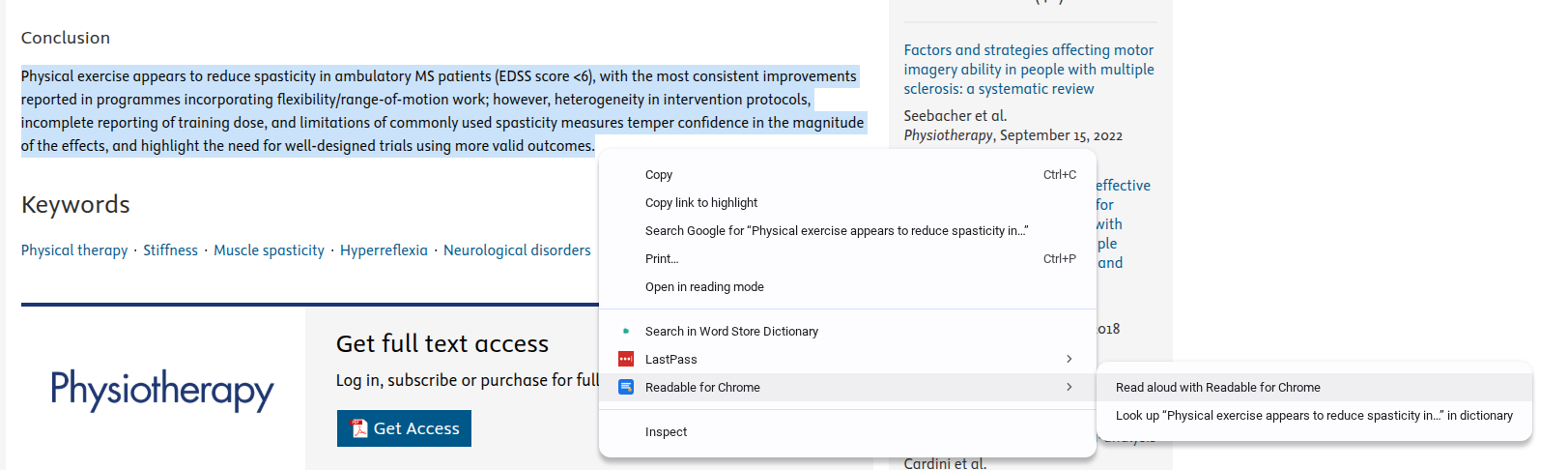
Highlight some text and right-click. Under Readable for Chrome:
- Read aloud with Readable for Chrome — speaks the selection.
- Look up "…" in dictionary — opens the dictionary popup with the selected word or phrase.
On an empty page area
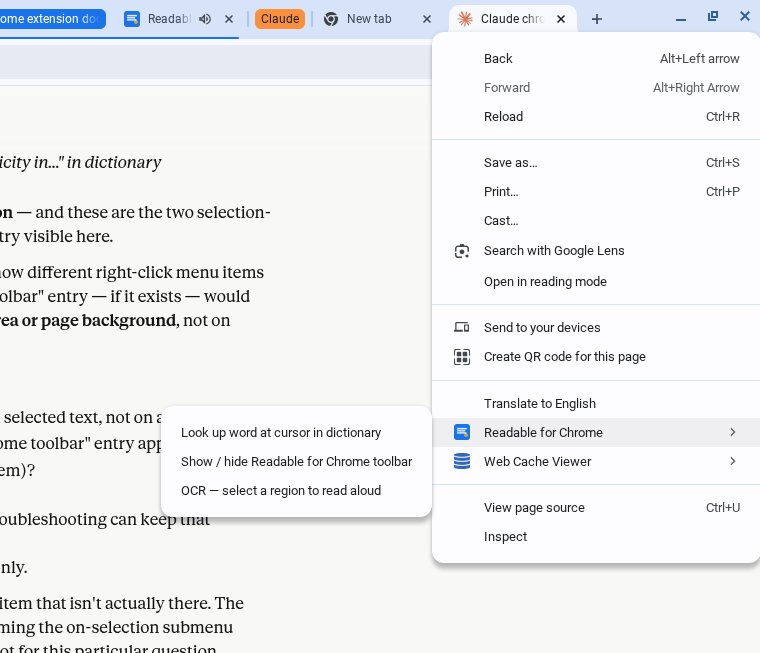
Right-click any empty area of the page (not on a selection, link or image). Three items are added:
- Look up word at cursor in dictionary — looks up whichever word is under the cursor.
- Show / hide Readable for Chrome toolbar — a third way to toggle the toolbar (alongside Alt+Shift+R and the Settings page).
- OCR — select a region to read aloud — starts the OCR cross-hair selection.
On the extension icon
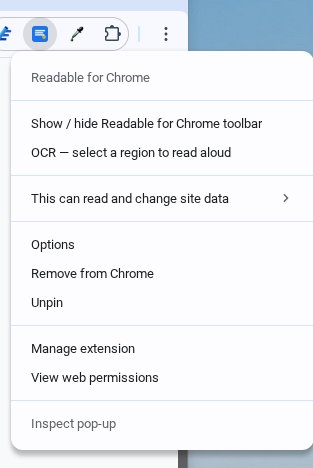
Right-click the Readable for Chrome icon in Chrome's toolbar (next to the address bar). Two custom items are added at the top of the menu:
- Show / hide Readable for Chrome toolbar.
- OCR — select a region to read aloud.
Chrome's standard Options item (further down the same menu) also opens the Settings page, so it's another way in if you don't have the toolbar visible.
Reading aloud
Hover-to-speak
When hover-to-speak is on (default), Readable for Chrome speaks whatever text your cursor stops over for half a second. Move the cursor away to stop.
Adjust under Settings → Reading:
- Speak when cursor hovers over text — master toggle.
- Hover delay — how long the cursor must rest before speech starts. Default 500 ms.
- Require Ctrl/Alt key to trigger hover-speak — only speak when you hold a modifier key while hovering. Useful on busy or information-dense pages. Default on.
Select-to-speak
Highlight any text with the mouse or keyboard. When you finish selecting, the selected text is read aloud. As each word is spoken it is underlined in your chosen colour.
You can also:
- Right-click the selection and choose Readable for Chrome → Read aloud with Readable for Chrome, or Look up "…" in dictionary.
- Press Alt+Shift+Space to read the current selection.
Visual tracking, in Settings → Reading:
- Underline each word as it is spoken — default on.
- Underline colour — default red.
- Underline thickness — default 3 px.
- Highlight the full selection being read — default off.
- Highlight colour — default pale yellow.
Read modes
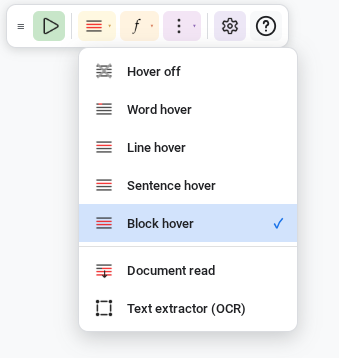
Pick a read mode from the toolbar's hover/read mode dropdown (red lines icon) or under Settings → Reading → Read mode:
- Hover off — disables hover-to-speak completely.
- Word hover — speaks the single word under the cursor.
- Line hover — speaks the whole visual line.
- Sentence hover — speaks from the previous full stop to the next.
- Block hover — speaks the whole paragraph or block.
Two more entries in the same dropdown — Document read and Text extractor (OCR) — are one-shot actions rather than hover modes (see below and the OCR section).
Document read
Reads the whole page from top to bottom. Choose Document read from the hover/read mode dropdown to start; press Esc or click ■ Stop on the toolbar to stop. Useful for getting through an article without having to hover or select.
Voice & speech settings
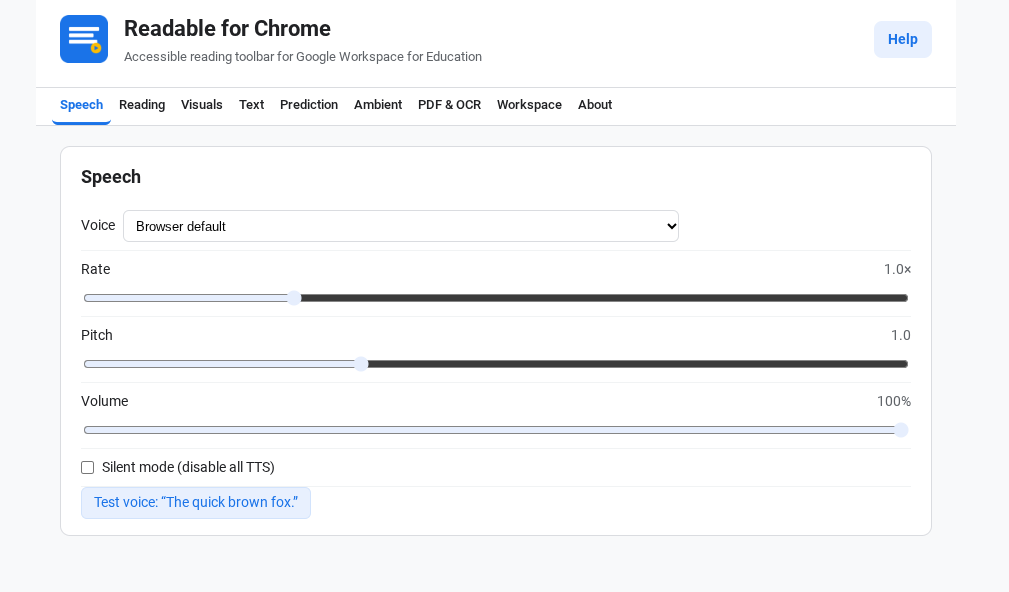
Under Settings → Speech:
- Voice — pick from your device's installed text-to-speech voices. Chromebooks ship with a wide range of Chrome OS and Android voices in many languages.
- Rate — speech speed. Default 1.0×.
- Pitch — voice pitch. Default 1.0.
- Volume — TTS volume. Default 100%.
- Silent mode (disable all TTS) — turns off all speech without losing your other settings. Default off. Quick toggle: Alt+Shift+S.
- Test voice — plays a short sample with the current voice and settings.
The voice list is provided by the operating system. On Chromebooks, some voices are downloaded on first use — if a voice sounds wrong or doesn't speak, give it a minute and try a different voice meanwhile.
Visual aids
Colour tint
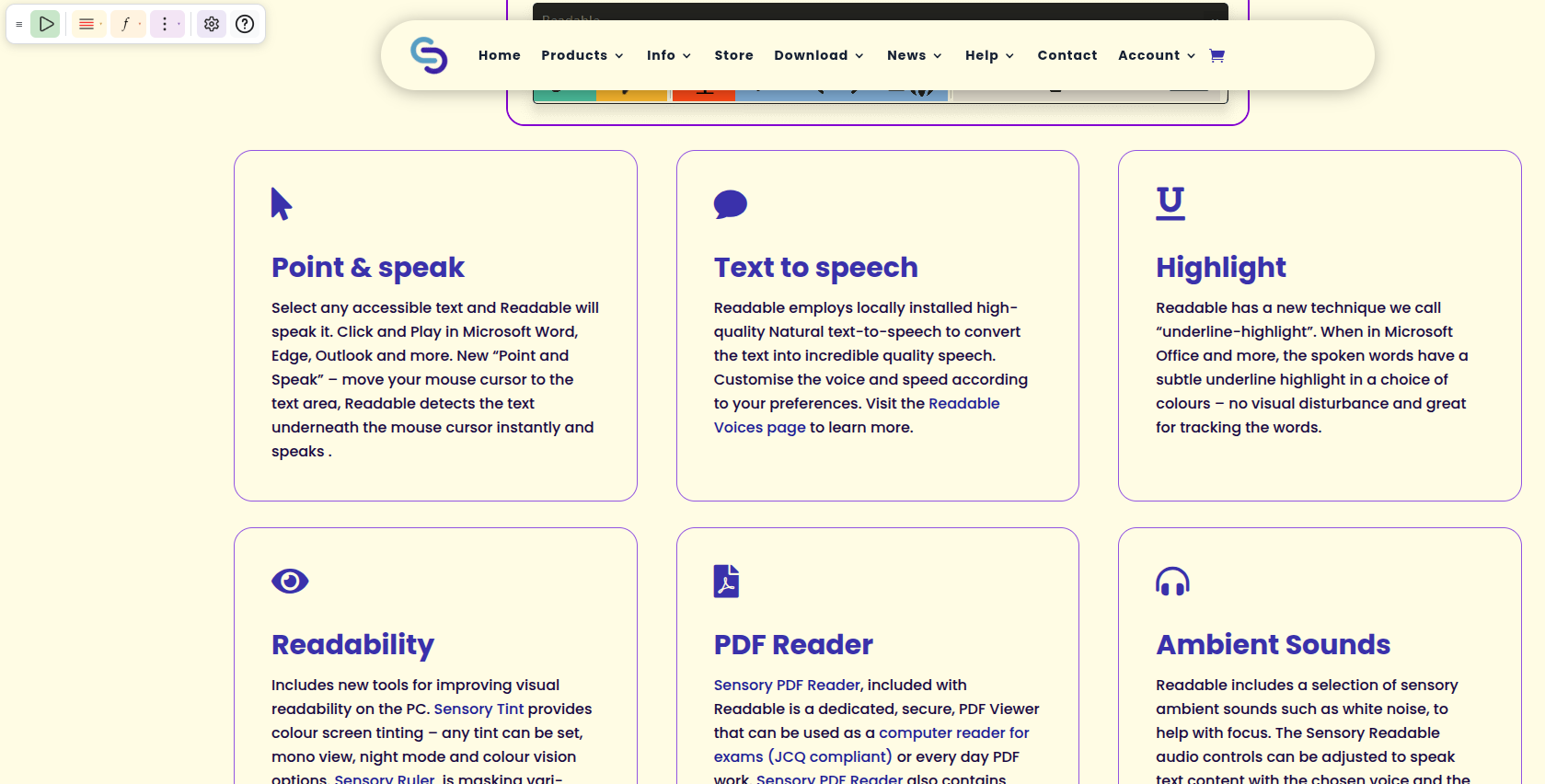
Apply a gentle colour wash across the whole screen. Many readers with dyslexia or visual stress find a pale yellow, peach or blue tint easier to track than pure black-on-white. Under Settings → Visuals:
- Apply a colour tint across the page — default off.
- Tint colour — colour picker. Default pale yellow (RGB 255 / 247 / 179).
- Tint opacity — how strong the tint is. Default 0.35.
Reading ruler

A horizontal band that follows your cursor with coloured edge lines top and bottom — it helps you stay on the current line. Under Settings → Visuals:
- Show a reading ruler that follows the cursor — default off.
- Ruler colour — colour picker. Default pink/magenta.
- Ruler height — band thickness in pixels. Default 56 px.
- Ruler opacity — default 0.25.
Dim text above and below the ruler band
This option lives under the ruler and replaces the older Focus Mode setting. The page outside the ruler band is dimmed by an adjustable strength so only the current line is fully readable. The dim band always tracks the ruler's height, so there's only one knob to tune.
- Dim text above and below the ruler band — default on (when the ruler itself is on).
- Dim strength — how much the rest of the page is dimmed. Default 0.75.
Available only when the ruler itself is enabled.
High contrast
Forces a black-background / white-text palette on every page. Yellow for links. Useful for very-low-vision users and in glare. Under Settings → Visuals → Force dark-on-light high-contrast colours — default off.
Text presentation
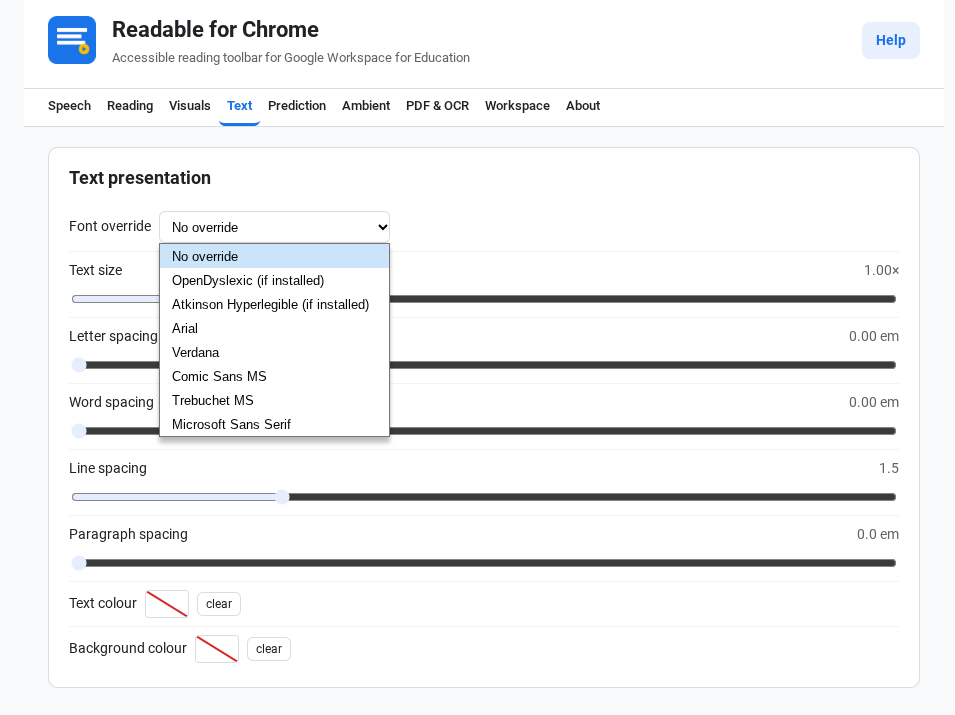
In Settings → Text you can change how any page's text looks without changing the page itself. The same controls are also available from the toolbar's ƒ dropdown.
- Font override — pick from No override, OpenDyslexic (if installed), Atkinson Hyperlegible (if installed), Arial, Verdana, Comic Sans MS, Trebuchet MS, or Microsoft Sans Serif. Items marked "(if installed)" require the corresponding font to be installed on the device — your IT administrator can pre-install OpenDyslexic and Atkinson Hyperlegible on managed Chromebooks.
- Text size — scales all text. Default 1.00×.
- Letter spacing — default 0.00 em.
- Word spacing — default 0.00 em.
- Line spacing — default 1.5.
- Paragraph spacing — default 0.0 em.
- Text colour and Background colour — custom colours that override the page's own. Each has a "no override" state shown as a red diagonal line through the swatch — use the clear button to return to it.
All sliders can be reset to their default with the matching control on the page.
Predictive typing
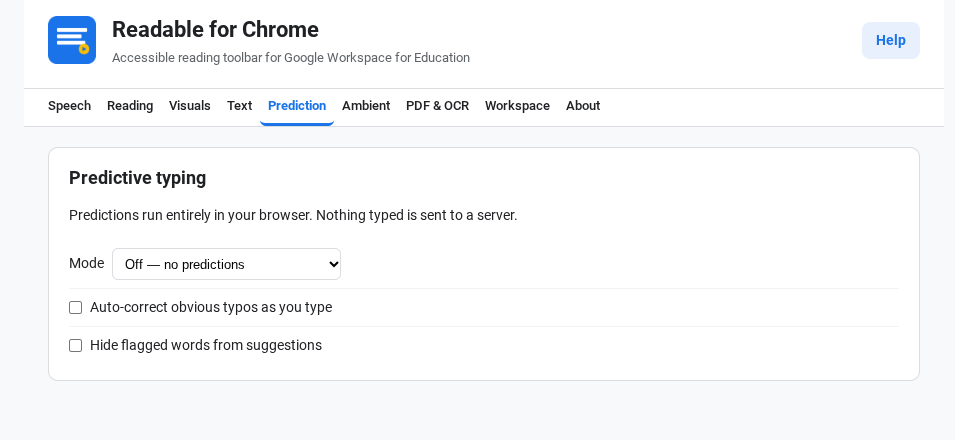
How it works
When predictive typing is on, a small popup appears as you type into any web text field — input boxes, textareas and rich-text contenteditables on Docs, Forms, Gmail and elsewhere. Up to five next-word suggestions are ranked by frequency from a built-in 20,000-word table plus a small lemmatiser ported from SymWord.
Everything runs in your browser — nothing typed is sent to a server.
Modes
Under Settings → Prediction → Mode:
- Off — no predictions (default).
- Sensory predictions (words only) — text-only suggestions.
- Sensory predictions with symbols — text suggestions with a small icon above each suggested word, for emerging readers.
Symbol support
Symbol mode requires a separately-deployed symbol bundle. When the bundle is installed, suggestions appear with a small picture above the word. When it isn't, the predictor falls back automatically to plain word suggestions — there's no error and no setup needed at the user end.
If you'd like symbol predictions and aren't seeing them, ask your IT administrator whether the symbol bundle has been deployed.
Auto-correct & flagged words
- Auto-correct obvious typos as you type — replaces clearly-wrong words on space or punctuation. Default off.
- Hide flagged words from suggestions — keeps inappropriate words out of the suggestion list. Default off. The flagged-words list is managed by your school's IT administrator.
Using the popup
When the popup appears as you type:
- Tab — accept the highlighted suggestion.
- ↑ / ↓ — cycle through suggestions.
- Esc — dismiss the popup.
Ambient sound
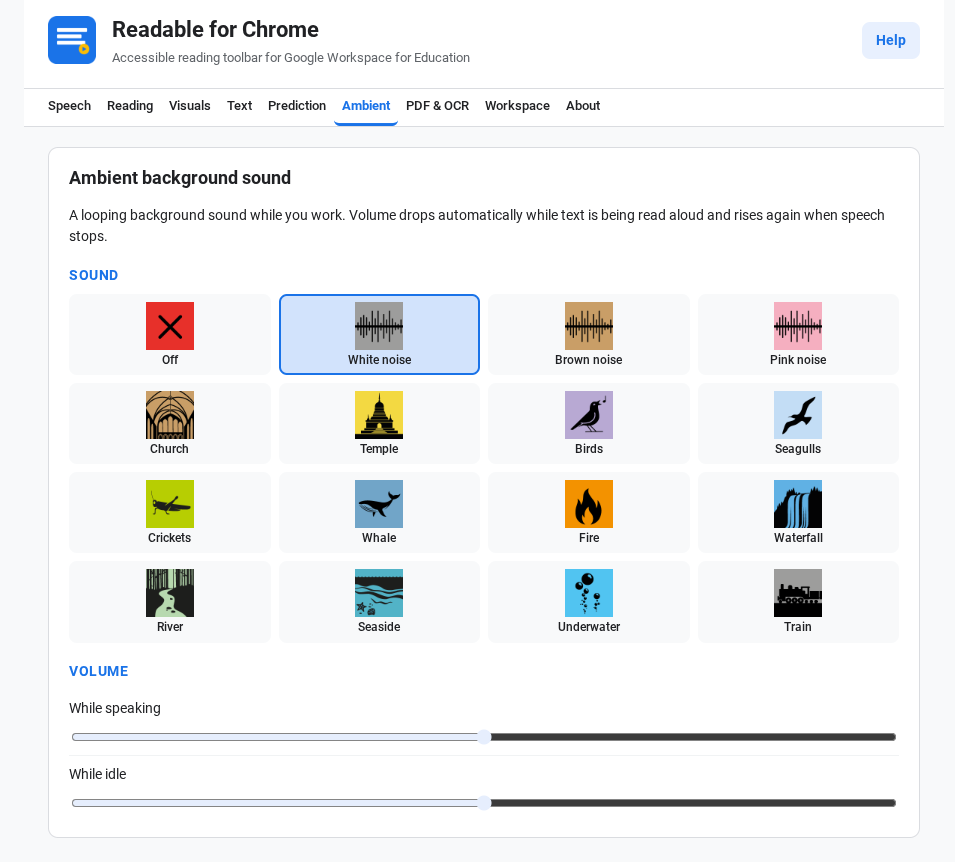
A looping background sound while you work. Many readers find a steady, low-volume backdrop reduces distraction and helps them stay focused on a long passage. Pick a track from the icon grid and tune the two volumes under Settings → Ambient.
Sixteen tracks are bundled with the extension:
- Off — no background sound.
- White noise, Brown noise, Pink noise — three flavours of broadband noise. Many users find brown most calming.
- Church, Temple — quiet reverberant interiors.
- Birds, Seagulls, Crickets, Whale — natural soundscapes.
- Fire, Waterfall, River, Seaside, Underwater, Train — steady, rhythmic environments.
Two volume sliders let you set independent levels:
- Volume while speaking — how loud the ambient is while text-to-speech is reading.
- Volume while idle — how loud the ambient is the rest of the time.
Setting "while speaking" lower than "while idle" lets the ambient duck out of the way while you listen, then come back. All audio is bundled inside the extension — no internet connection is used to play it.
Google Workspace
Readable for Chrome is designed for Google Workspace for Education and works across the apps students use most.
Google Docs & Slides
Google Docs and Slides render text to a <canvas> element rather than as normal HTML. Readable for Chrome reads them via Google's annotated-canvas accessibility tree plus a copy-based bridge for canvas-rendered content. The result:
- Select-to-speak after you finish selecting.
- Hover-to-speak with the moving underline tracking each word.
- The reading ruler and colour tint on top of the document.
Gmail
Open any message and press Ctrl+Alt+P. The subject and body are read aloud. Hover-to-speak and select-to-speak also work as normal.
Google Classroom
Open an assignment, announcement or material. Press Ctrl+Alt+P to have the whole item read aloud. Hover-to-speak and select-to-speak also work on Classroom pages.
Google Forms
Hover-to-speak and select-to-speak work on form question text and instructions. Predictive typing works inside form text fields, so students get word suggestions while filling in long-answer questions.
Drive, Meet, Keep, Sites
Hover-to-speak and select-to-speak work on these too:
- Google Drive preview — inline previews of documents.
- Google Meet captions — live captions can be read.
- Google Keep — note text.
- Google Sites — published page content.
Where it doesn't work
Chrome doesn't allow extensions to run on a small set of pages, so Readable for Chrome cannot read text on:
chrome://pages (settings, history, downloads, etc.).- Other extensions' settings pages.
- The Chrome Web Store.
If you find the toolbar missing on one of those pages, that's why — it isn't a fault.
PDF viewer
Readable for Chrome includes its own PDF viewer (built on Mozilla's pdf.js) so that every accessibility feature — TTS, ruler, tint, font override, spacing — works on PDF pages too.
To open a PDF:
- Click the 📄 PDF button on the toolbar.
- Or right-click a PDF link on any page and choose Open PDF in Readable for Chrome.
- Or turn on Settings → PDF & OCR → Automatically open PDF links in Readable for Chrome's viewer — from then on, every
.pdflink you click opens here. - Or in the viewer itself: use Open PDF, paste a URL, or drop a file onto the page.
Inside the viewer:
- Read — read the whole document aloud.
- Page — read just the current page.
- Navigate with ← / →, the page-number input, or your keyboard's arrow keys.
- Pick a zoom level from the dropdown, or step with + / −.
- Use the search box to find text in the document.
- Download or print the PDF using the toolbar buttons in the viewer.
OCR — reading pictures of text
Some text lives inside images — scanned worksheets, photos of pages, screenshots of textbooks. OCR (Optical Character Recognition) extracts that text so it can be read aloud.
To start OCR, choose any of:
- Click the 📷 OCR button on the toolbar.
- Press Alt+Shift+O.
- Right-click any page area and choose OCR — select a region to read aloud.
- Right-click the Readable for Chrome icon in Chrome's toolbar and use the same item.
Then:
- Your screen dims with a cross-hair cursor. Drag a rectangle around the text you want.
- Release. Readable for Chrome captures that rectangle, recognises the text, shows it in a popup and reads it aloud.
- Click Copy in the popup to put the recognised text on your clipboard.
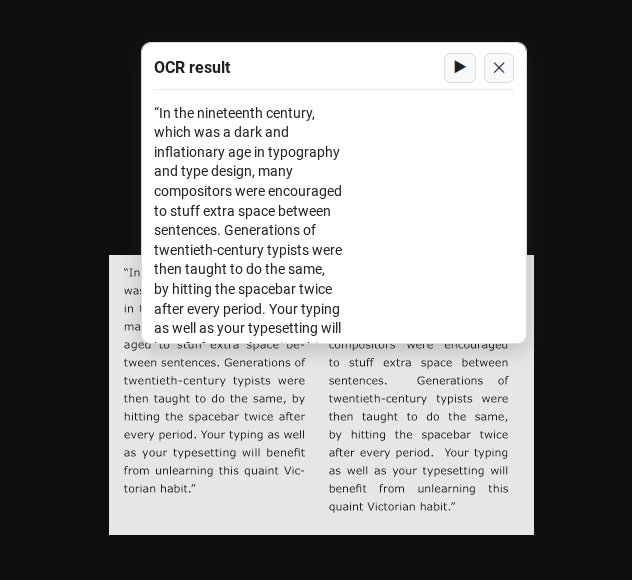
The popup shows the recognised text alongside a ▶ button to read it aloud and a × button to close. The captured region remains visible behind the popup, so you can compare the recognised text against the original at a glance.
OCR runs entirely on your device — the captured image and recognised text never leave the browser. The default language is English. Additional languages — French, Spanish, German, Italian and Portuguese — can be selected in Settings → PDF & OCR → OCR language. More languages can be added by your IT administrator on managed devices.
The first time you use OCR after starting Chrome, the engine takes a few seconds to initialise. Subsequent uses are much faster.
Dictionary
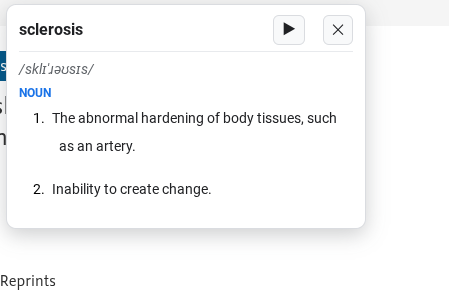
Readable for Chrome includes a quick-lookup dictionary. Three ways to use it:
- Right-click a selection and choose Readable for Chrome → Look up "…" in dictionary.
- Right-click any page area and choose Look up word at cursor in dictionary — looks up whatever word is under the cursor.
- Right-click the extension icon in Chrome's toolbar and use the same options.
The popup shows:
- The word in bold.
- Phonetic pronunciation (e.g. /sklɪˈəʊsɪs/).
- Part of speech (NOUN, VERB, etc.) in indigo capitals.
- Numbered definitions.
- A ▶ button to hear the word and definitions read aloud.
The dictionary can be turned on or off in two places: from the toolbar's Tools dropdown (a checkmark indicates it's on), or under Settings → Workspace → Dictionary → Enable quick dictionary lookup on selection. In classrooms with strict network policies, your IT administrator can turn the dictionary off for managed devices.
Keyboard shortcuts
| Action | Shortcut |
|---|---|
| Toggle the floating toolbar | Alt+Shift+R |
| Silent mode (disable all TTS) | Alt+Shift+S |
| Read selection | Alt+Shift+Space |
| OCR a region | Alt+Shift+O |
| Stop speech | Esc |
| Read open Gmail message / Classroom item | Ctrl+Alt+P |
| Accept a prediction suggestion | Tab |
| Cycle through prediction suggestions | ↑ / ↓ |
| Dismiss the prediction popup | Esc |
| Toggle ruler / dim band — set your own | chrome://extensions/shortcuts |
Individual shortcuts can be changed by visiting chrome://extensions/shortcuts in your address bar.
For school administrators
Readable for Chrome is designed to be deployed by an IT administrator. Students don't need to install anything themselves.
Deploying via Google Admin Console
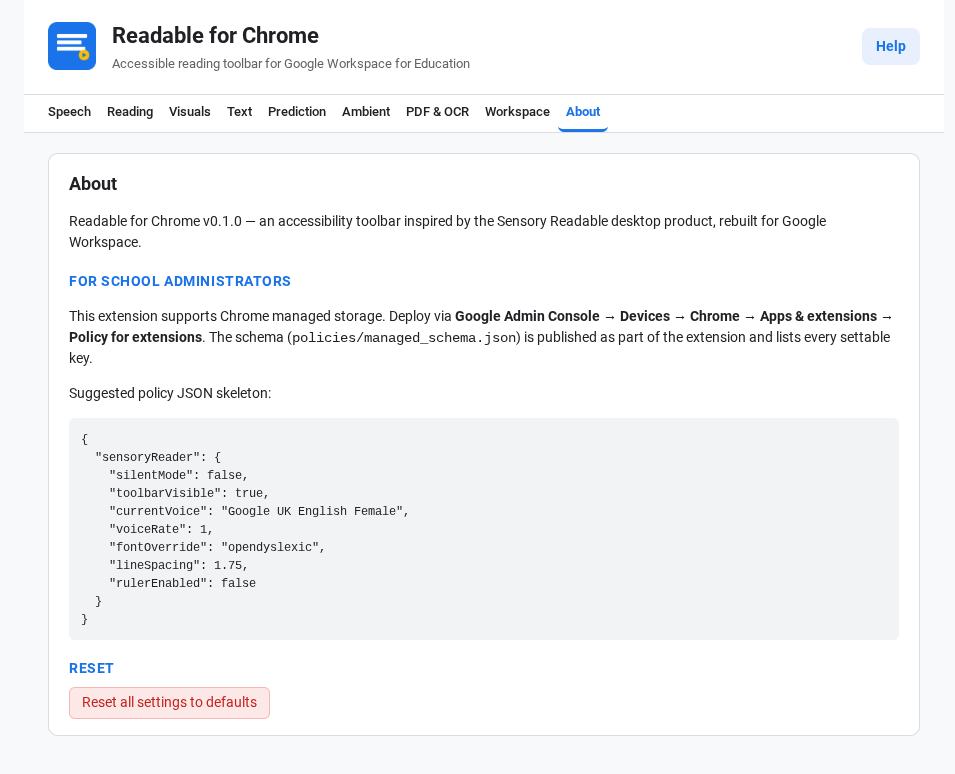
Deploy through Google Admin Console → Devices → Chrome → Apps & extensions. The extension can be force-installed on managed devices and pinned to the Chrome toolbar. Per-OU scoping is supported, so the policy can differ by school, year group or class.
Managed policy reference
Once deployed, every setting can be pre-configured and optionally locked via the Chrome managed policy schema. An example policy:
{
  "sensoryReader": {
    "silentMode": false,
    "toolbarVisible": true,
    "currentVoice": "Google UK English Female",
    "voiceRate": 1.0,
    "fontOverride": "opendyslexic",
    "lineSpacing": 1.75,
    "rulerEnabled": false,
    "ocrLang": "eng",
    "pdfAutoOpen": true
  }
}
The full set of policy keys is defined in policies/managed_schema.json, shipped with the extension. Every setting visible in the Settings page has a corresponding policy key.
Locked settings
Any setting set via managed policy appears in the Settings page with a 🔒 icon and cannot be changed by the student. Combine with per-OU scoping to give different groups of students different defaults — and to lock the settings most likely to be tampered with (e.g. silent mode, toolbar visibility) while leaving others (e.g. font choice, voice) freely configurable.
OCR language deployment
The default install includes English OCR. The Settings page exposes French, Spanish, German, Italian and Portuguese as additional choices. Further languages can be added by deploying the corresponding language-data files alongside the extension. Contact Sensory App House support for the current list and deployment instructions.
Symbol bundle deployment
The "Sensory predictions with symbols" mode requires a separately-deployed symbol bundle. Without it, symbol mode falls back gracefully to word-only predictions. To enable symbols across your fleet, contact Sensory App House support for the current symbol bundle and deployment instructions.
Version management
The Chrome Web Store auto-updates the extension on managed devices. To pin a specific version (e.g. for a known-good configuration during exam season), use the Apps & extensions → Updates controls in the Admin Console.
Reset all settings
The About tab includes a Reset all settings to defaults button. This clears all user-set preferences and falls back to either the managed-policy values (where set) or the extension's built-in defaults. Useful for shared devices and end-of-year wipes.
Privacy
- Text-to-speech — uses the device's built-in / browser voices. Spoken text is never sent to a remote server.
- OCR — runs fully on-device in an offscreen WebAssembly worker. Captured screen pixels and recognised text never leave the browser.
- PDF viewer — PDFs are fetched and rendered directly by the viewer; no intermediate server is involved.
- Predictive typing — runs entirely in your browser. Nothing typed is sent to a server.
- Ambient sound — all audio is bundled with the extension. No network requests.
- Dictionary — may use an online lookup service. Schools with strict network policies can disable the dictionary; ask your IT administrator if you have specific questions about network requests.
- Settings — stored in
chrome.storage.sync, encrypted by Chrome and synced to the user's own Google Account. No third-party sync.
Readable for Chrome is suitable for FERPA / COPPA / GDPR environments when deployed by a school.
Troubleshooting
Nothing is read aloud
- Check Silent mode is off — press Alt+Shift+S to toggle it.
- Check Volume isn't 0 in Settings → Speech.
- Check a voice is selected in Settings → Speech → Voice.
- Some Chromebooks need to download voices the first time they're used. Try a different voice, or wait a minute and try again.
The toolbar disappeared
Look for the small SR circle in a corner of the page — click it to bring the toolbar back. You can also press Alt+Shift+R, right-click any page area and choose Show / hide Readable for Chrome toolbar, or right-click the Readable for Chrome icon in Chrome's toolbar and use the same item. If none of those work, re-enable the toolbar in Settings → Workspace → Show the floating toolbar.
The toolbar isn't there on some pages
The toolbar doesn't run on Chrome's own pages (chrome:// URLs), other extensions' pages, or the Chrome Web Store. This is a Chrome restriction — extensions aren't allowed to inject into those pages. The toolbar will be back on the next normal web page.
The toolbar reappears every time I load a new page
That's by design. The toolbar's visibility resets per page so that a hidden toolbar on one site doesn't follow you to another. If you'd prefer it permanently hidden, turn off Settings → Workspace → Show the floating toolbar — that setting is remembered.
The underline or ruler is misaligned
This usually happens on pages with heavy custom CSS. Refresh the page; if it persists, try toggling the affected feature off and on in Settings → Visuals or Settings → Reading.
OCR is slow or stuck
The first time you use OCR after starting Chrome, the engine needs to initialise (around six seconds). Subsequent OCRs are much faster. If OCR fails repeatedly, ask your IT administrator to check the OCR language deployment for your device.
A PDF link still opens in Chrome's built-in viewer
Turn on Settings → PDF & OCR → Automatically open PDF links in Readable for Chrome's viewer. If a particular PDF still opens in Chrome's viewer, the file may be served without a .pdf extension (e.g. getDoc?id=123) — in that case, click the toolbar 📄 button or right-click → Open PDF in Readable for Chrome.
The prediction popup doesn't appear when I'm typing
- Check the mode is set to either Sensory predictions (words only) or Sensory predictions with symbols in Settings → Prediction → Mode. The default is Off.
- The popup appears in standard text fields — input boxes, textareas, and rich-text editors on Docs, Forms, Gmail, etc. It won't appear in non-text fields like password boxes or in Google Sheets cells.
A voice sounds wrong, or speaks the wrong language
The list of available voices is provided by Chrome and the operating system, not by Readable for Chrome. Try a different voice in Settings → Speech → Voice. On Chromebooks, additional voices can be installed in Chrome OS settings (Accessibility → Text-to-Speech → Speech engines).
Settings aren't syncing across my devices
Settings sync via chrome.storage.sync, which depends on Chrome being signed in to a Google account with sync enabled. Check that you're signed in to the same account on each device, and that sync is on (Chrome Settings → You and Google → Sync). Managed devices may have sync configured by your IT administrator.
Frequently asked questions
- How do I temporarily turn off all speech?
- Press Alt+Shift+S to toggle Silent mode. Your other settings are preserved — turn it off again with the same shortcut. You can also toggle Silent mode in Settings → Speech.
- Why isn't the toolbar showing on this page?
- Chrome doesn't allow extensions to run on its own pages (
chrome://URLs), the Chrome Web Store, or other extensions' settings pages. The toolbar will be back on the next normal web page. If it's missing on a normal page too, press Alt+Shift+R to bring it back, or check Settings → Workspace → Show the floating toolbar. - Does Readable for Chrome need an internet connection?
- Mostly no. Text-to-speech, OCR, predictive typing, the PDF viewer, and ambient sounds all run locally on the device. The dictionary may use an online lookup service — your IT administrator can disable it on managed devices.
- Does it work in Google Docs?
- Yes. Google Docs and Slides render text to a
<canvas>element rather than as standard HTML, but Readable for Chrome reads them via Google's annotated-canvas accessibility tree. Hover-to-speak, select-to-speak, the reading ruler and colour tint all work. - Can my school deploy this for all students?
- Yes. Readable for Chrome is designed for managed deployment via Google Admin Console → Devices → Chrome → Apps & extensions. Every setting can be pre-configured and optionally locked via Chrome's managed-policy schema, with per-OU scoping. See For school administrators.
- What student data does Readable for Chrome collect?
- None off-device. TTS uses the browser's built-in engine, OCR runs locally in WebAssembly, predictive typing runs locally, and settings sync via the student's own Google Account through Chrome's encrypted sync. The only optional outbound network call is the dictionary lookup, which can be disabled. See Privacy.
- How do I install OpenDyslexic or Atkinson Hyperlegible?
- These fonts aren't bundled with the extension — they need to be installed on the device. On managed Chromebooks, your IT administrator can pre-install them via Google Admin Console. On personal devices, install them via your operating system's font manager. Once installed, choose them under Settings → Text → Font override.
Need more help? Contact Sensory App House, or visit the online version of this guide at help.sensoryreadable.com/readable-for-chrome for the latest updates.